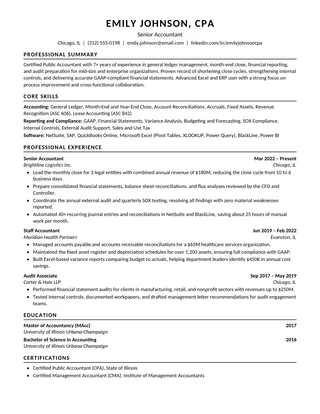
One ColumnMinimalist
Clean ATS Resume
Check that all contact information is real text rather than an image, and export a selectable-text PDF or DOCX.
Choose a free ATS resume layout for Microsoft Word. Focus on readable paragraphs, check line breaks in DOCX, and send the file type the employer requests.
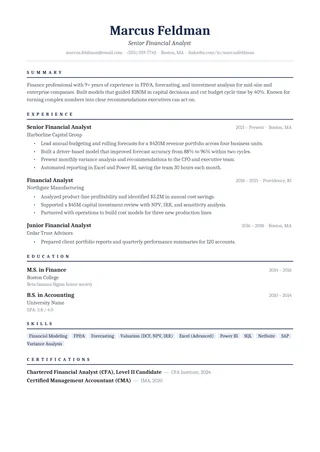
Check that all contact information is real text rather than an image, and export a selectable-text PDF or DOCX.
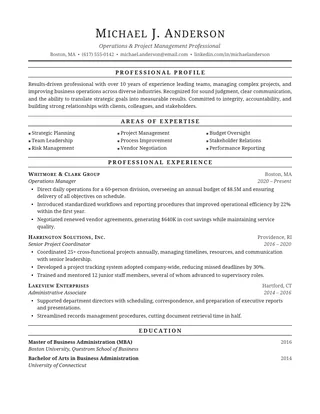
Lead experience bullets with action and outcome, not just a list of duties.
Retain the standard contact, experience, education, and skills sections when adapting the layout.
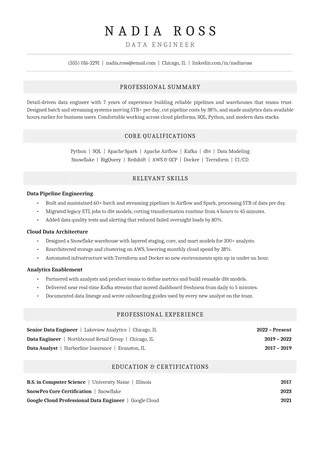
Export to Word or PDF, then check that the shaded heading bands have not become text boxes.
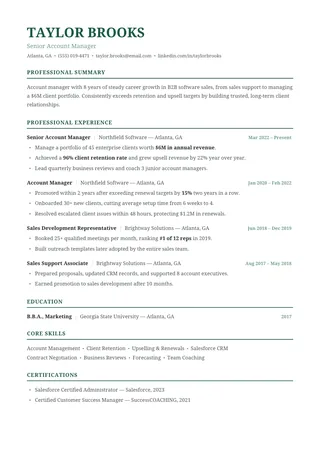
Use consistent dates and put the most recent work first.
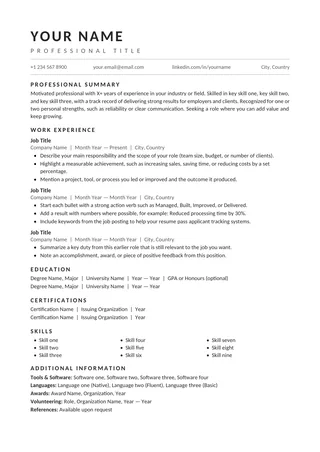
Check that employer names, titles, and dates remain associated when copied into plain text.
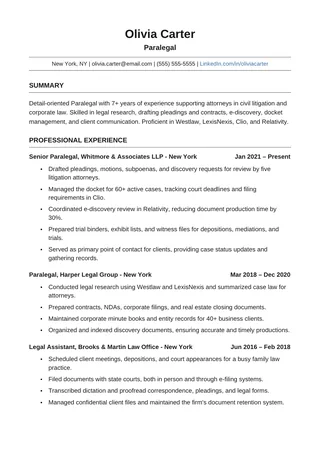
Use consistent dates and conventional section headings. Keep the newest, most relevant roles on the first page.
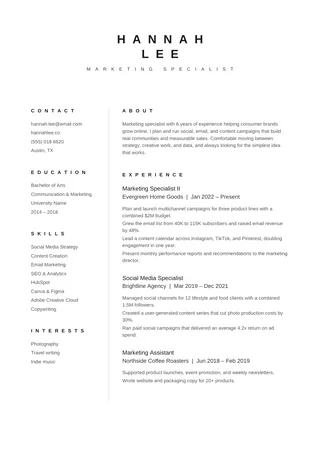
Because split layouts can be read differently by different ATS platforms, copy text from your export to check its order before you apply.
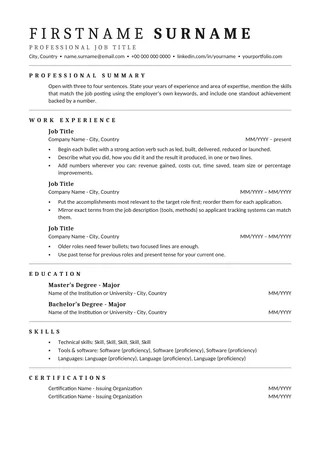
Avoid placing required keywords only in headers or footers; keep them in the resume body.
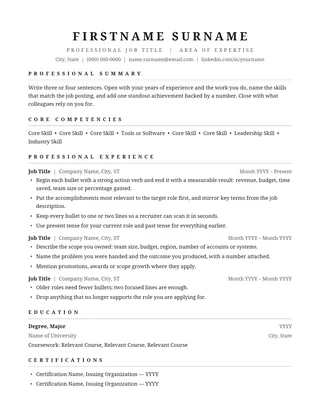
Do not shrink the body text excessively just to fit every position on one page.
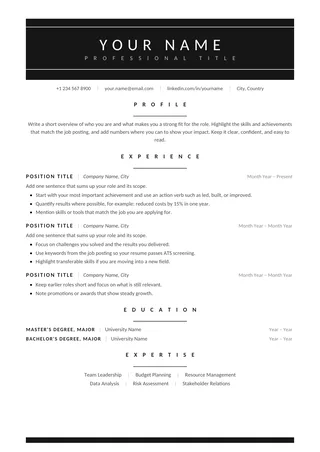
Keep text contrast high and use standard bullet characters.
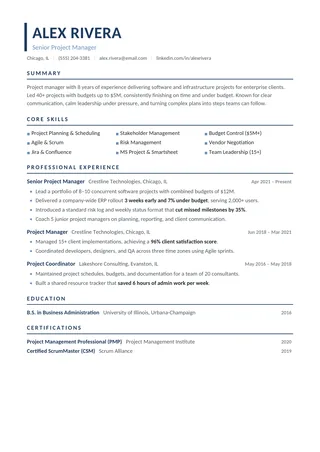
Match terminology in the job posting only if the tools and methods are part of your actual experience.
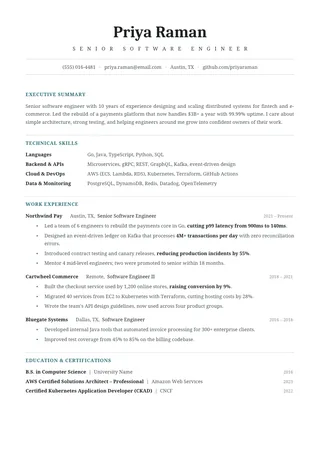
Remove empty sections and customize the summary to match the role you want.
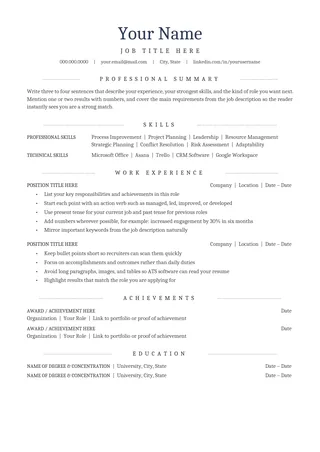
Make sure text is selectable after export; decorative centering is not a substitute for readable headings.
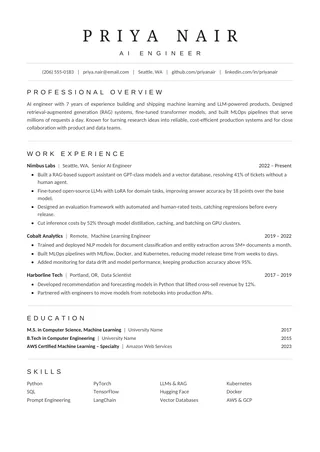
Review the final reading order, hyperlinks, and dates before uploading.
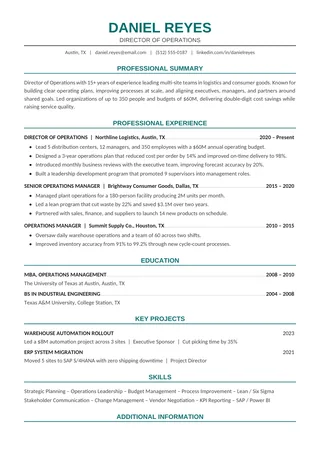
Put scope, metrics, and business outcomes in the first work-history bullets.
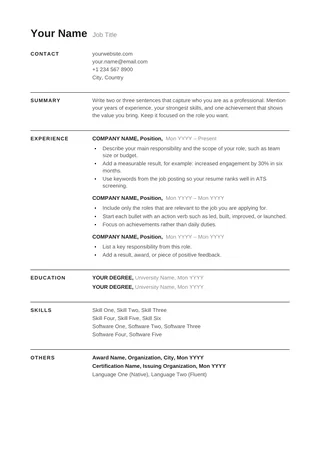
Keep the finished document in normal body text and test a copied plain-text version.
No templates found
Try a simpler keyword or clear the selected filter.
Open a Word-compatible file for the layout you prefer and edit the text using Word’s normal paragraph styles. Avoid inserting shapes for essential content. Open the saved file again to check that nothing moved.
For online job applications, upload the type of file requested by the employer. If PDF is allowed, verify that the text is selectable; if DOCX is required, send the DOCX. Neither file format is universally best for every ATS.
ATS formatting checklist →Word is a practical choice when an employer explicitly requests a DOCX file or when you prefer to work with desktop editing tools. Choose a template with predictable sections, save a working copy, and use Word's paragraph formatting rather than placing important details in floating objects. The final DOCX needs to be as readable as the page looks.
Use the available Word download for the design you prefer. Save a working copy before changing the sample content. If the file opens in Protected View, check its source and enable editing only when you trust it. Verify that the page size, font family, and section breaks have not changed during download or conversion.
Give important sections recognizable labels. Word's built-in paragraph and heading styles can help keep line spacing, font weight, and indent levels consistent. Avoid positioning crucial information inside text boxes, shapes, or complex nested tables merely to make items align. When pasting from another document, choose plain text or match formatting to prevent hidden style conflicts.
Make sure each employer, title, and date range forms a clear unit. Right-aligned dates are common, but unusual tab stops can cause them to drift after export. Keep the chronology consistent and avoid manual spaces to imitate columns. Use normal bullet lists, not symbols pasted from an image or icon font.
Before uploading, save the DOCX and reopen it. If the employer accepts PDF and you prefer that format, export a second version and inspect the text in both. Some fonts, page breaks, and spacing settings render differently across versions of Word and other editors. A reliable check is to select all text and paste it into a plain-text file, then verify that contact details and experience are still in the expected order.
Yes. Edit the downloaded document and keep readable body text, consistent headings and predictable spacing.
Follow the file-format instructions on the application page. For either file type, inspect the exported content before submitting.
No. The Word edition can be edited in Microsoft Word; the Google Docs alternative is also available.